Original guide and demonstrations
These instructions describe the earlier application. The calculator above provides the current workflow.
This is a very simple table that allows you to input data from a QuickDASH assessment, obtain the calculated score and then copy and paste the results into a text box format in e-doc hospital systems. Key points are:
- Simply type the values into the respective cells, then click "Calculate Score" to obtain the QuickDASH total score.
- You can leave cells blank but do not type in any spaces, brackets or commas. This will allow you to export data directly from e.doc into an excel compatible format. If you leave cells blank they will switch to "NaN" (not a number) when you click "Calculate Score", but the total score will still be correct.
- If you get an "ERROR" code when you click "Calculate Score" this means you input a value outside the range of the assessment or input a character that is not a number. Click "Refresh" and type it in again, or delete the "ERROR" text (and any "NaN" text) and recalculate.
- To copy and paste into e.doc simply select all of the data in the cell next to "COPY", right click and choose copy. Then paste it into the e.doc text box.
QuickDASH
QuickDASH - Work Module
QuickDASH - Sports / Performing Arts Module
* Works best with Google Chrome browser, known issues with Microsoft Edge
CONTRIBUTORS


Ross Clark
Zixian Yang
Yetta Chan
Yong Hao Pua
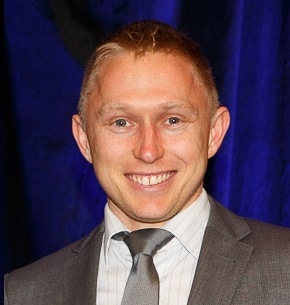
Ross Clark is a National Health and Medical Research Council RD Wright Biomedical Fellow at the University of the Sunshine Coast. He created this site and is the principal developer of the software, hardware and visualisation systems used.
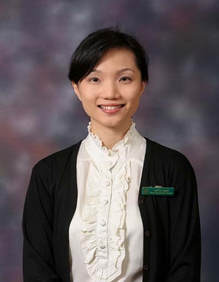
Zixian Yang is a Principal Occupational Therapist at Singapore General Hospital. She is a Certified Ergonomics Evaluation Specialist and has a special interest in hand rehabilitation.
Yetta Chan is a Principal Occupational Therapist at Singapore General Hospital. She takes a special interest in cognitive and physical rehabilitation, as well as the use of assistive technology in healthcare.
Yong Hao Pua is a Principal Physiotherapist at Singapore General Hospital, and one of the countries most highly respected researchers in the field of allied health. He has a passion for using data analysis and visualisation to improve clinical outcomes.
Funding received from: